Identification Authentication Strategy IAM: 2-Step Process
This guide explains the identification authentication strategy IAM practitioners use: identification (claiming an identity), authentication (verifying it), and how these two steps form the foundation of access control. For related content, see our Authentication Factors MFA Guide and CISSP Domain 5: IAM Guide. External references: NIST SP 800-63 Identity Guidelines and NIST Digital Identity Guidelines.
Identification and Authentication Strategy: IAM Part 2 Guide
This guide on identification authentication strategy IAM (Part 2) explains how organizations develop robust identity and authentication strategies: identity proofing, credential management, password policies, and authentication protocols. A well-designed authentication strategy is critical for zero-trust security. For related content, see our IAM Part 3: Authentication Factors and CISSP Domain 5: IAM Guide. External references: NIST Digital Identity Guidelines and SANS Security Resources.
Designing Your Identification & Authentication Strategy: Who Gets In and How You’ll Check
Title + Hook
Would You Let Just Anyone In? How to Decide Who Gets a Key—and Make Sure It’s Really Them
- Analogy 1: Think of a VIP event: not only do you need an invitation, but you also show your ID at the door.
- Analogy 2: At an airport, you need a ticket and a passport. Security checks aren’t just about entry, but about making sure you really are who you say you are.
Why is this so important?
Too many organizations hand out access before verifying who’s asking, or use weak checks. This is where many breaches begin—when “who” and “how” are just assumed.
Why It’s Needed (Context)
Mapping your doors (Part 1) was the foundation. But real security is about managing identities:
- Who is allowed in?
- How do you check they’re real?
- How long do they keep access?
- How do you track what they do?
If you skip this step, you’ll end up with the wrong people (or things) inside your system—sometimes for years.
Core Concepts Explained Simply
Let’s break down the essentials of a smart identification and authentication strategy:
1. Who Needs an Identity?
- People: Employees, contractors, partners, customers.
- Devices: Laptops, phones, servers, IoT sensors.
- Services: Applications, cloud APIs, bots.
- Everyday Example: Your workplace badge, your phone’s Face ID, or “Login with Google.”
2. Groups & Roles
- Technical Definition: Bundles of permissions for users, devices, or services.
- Everyday Example: All managers get a badge for meeting rooms; only IT has the server room key.
- Technical Example: HR group can access payroll system; “Admin” role gives cloud config rights.
3. Authentication, Authorization, and Accounting (AAA)
- Authentication: Proving who you are (password, face scan, MFA, passkey).
- Authorization: What you’re allowed to do once inside (read, write, approve, admin).
- Accounting: Tracking what you do (logs, audits).
- Everyday Example: Hotel: you show your ID (authentication), your card opens your room (authorization), and cameras/logs record entries (accounting).
4. Session Management
- Definition: Controlling the “open door” after login—how long you stay in, when you need to re-authenticate.
- Everyday Example: Your banking app logs you out after inactivity.
- Technical Example: 30-min session timeout, auto-MFA for sensitive actions, one-time-use access links.
5. Registration, Proofing, and Establishment of Identity
Definition: How new users/devices/services are registered and verified as legitimate.
- Everyday Example: Showing your driver’s license to open a bank account.
- Technical Example: HR uploads new hire data, system sends identity proof email, IT issues device and registers it.
6. Federated Identity Management (FIM)
- Definition: Letting users log in with accounts from trusted third parties (Google, Microsoft, business partners).
- Everyday Example: “Login with Google” on a new app.
- Technical Example: SAML, OIDC, Azure AD B2B—external users access your systems with their own credentials.
7. Credential Management Systems
- Definition: Tools that securely store, rotate, and manage passwords, tokens, secrets.
- Everyday Example: Password manager apps; locked safe for keys.
- Technical Example: HashiCorp Vault, AWS Secrets Manager, Bitwarden.
8. Single Sign-On (SSO)
- Definition: One login gives access to many apps—reducing password overload.
- Everyday Example: One work account opens email, drive, HR portal.
- Technical Example: Okta, Google Workspace, Azure AD SSO.
9. Just-In-Time (JIT) Access
- Definition: Temporary access granted only when needed—no standing admin rights.
- Everyday Example: Visitor badge that only works for a meeting’s time slot.
- Technical Example: Admin access valid for 1 hour, auto-expires, logs every action.
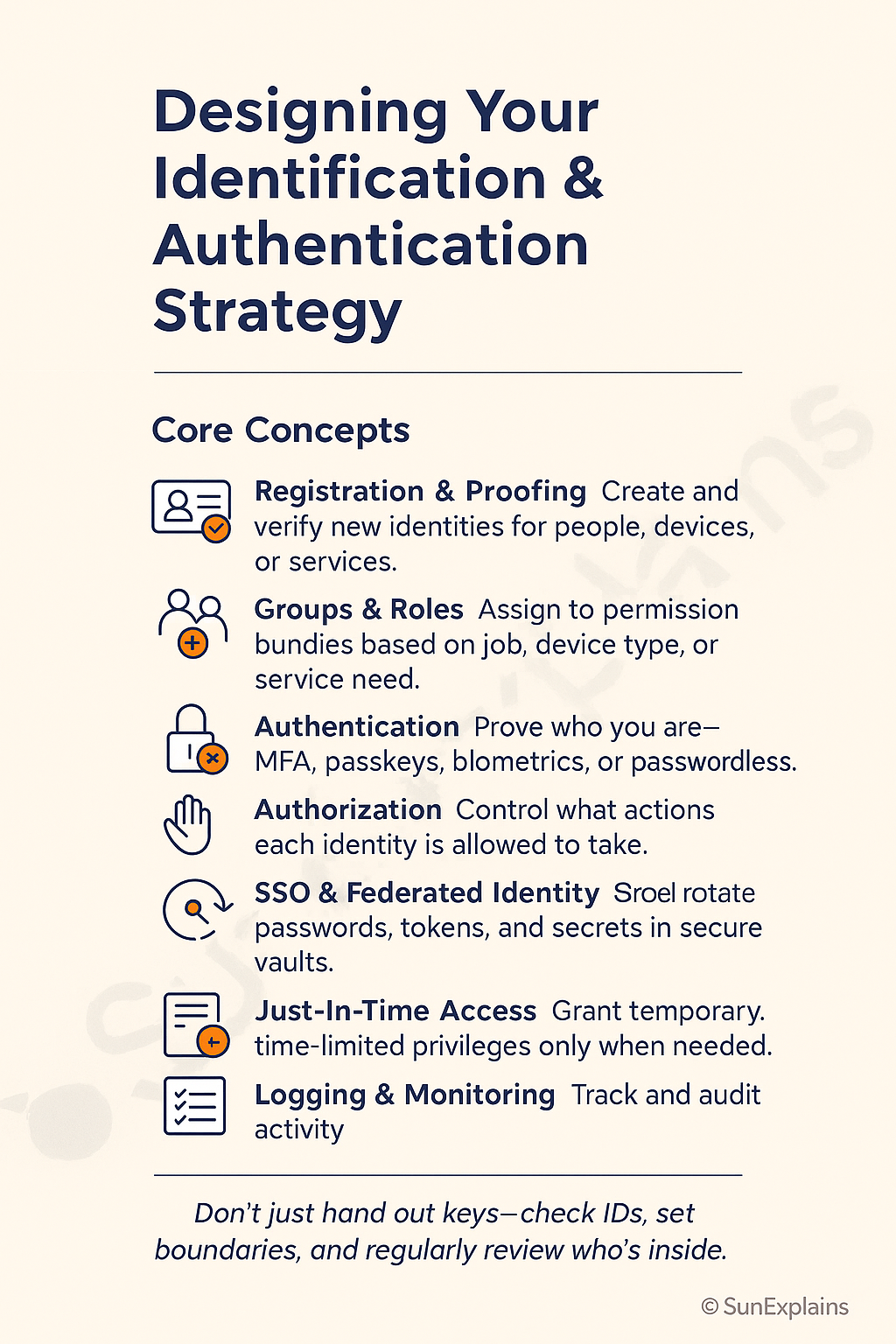
Visual Placeholder: “Identity Journey Workflow”
Each step is a checkpoint: Who are you? Should you be here? Are you still supposed to be here?
Real-World Case Study
Failure — The “Forever Admin” Problem
- Situation: A developer joined a cloud team and was granted admin access. Even after moving to a new role, her access was never removed.
- Impact: When her credentials were later phished, attackers gained “god mode” over production.
- Lesson: Strong identity strategy means no one keeps access they no longer need—groups, roles, and JIT should be used together.
Success — Smart Proofing + Just-In-Time Access
- Situation: A fintech required identity proofing (government ID upload + HR validation), then assigned minimum roles. Admin access was “Just-In-Time”—granted only for a specific job and auto-revoked after an hour.
- Impact: Even when attackers tried to socially engineer help desk, they hit a wall: no standing admin accounts to steal.
- Lesson: Smart onboarding plus temporary privileges shrink both risk and audit effort.
Action Framework — Prevent → Detect → Respond
Prevent
- Require identity proofing before creating any new account.
- Assign users/devices/services to groups/roles—never “everyone” access.
- Use strong authentication (MFA, passwordless) for all critical systems.
- Implement JIT for high-risk privileges—don’t leave “always-on” admin access.
- Centralize secrets/passwords in a vault with rotation.
Detect
- Monitor for failed logins, new devices, new locations.
- Alert on stale sessions or standing privileges.
- Log and review all admin and sensitive actions.
Respond
- Quickly revoke compromised or unused accounts.
- Rotate credentials after suspected exposure.
- Audit and clean up over-privileged or “ghost” users/devices.
- Review onboarding/offboarding after any incident.
Key Differences to Keep in Mind
| Difference | One-Line Explanation | Example Scenario |
|---|---|---|
| Authentication vs Authorization | Who are you? vs What can you do? | You log in, but only see your files |
| Group/Role vs. Individual | Easier, safer management for scale | All HR staff can approve timesheets |
| SSO vs Standalone | One login for all vs many passwords | Okta/Google SSO vs app-by-app logins |
| Standing Privilege vs JIT | Always-on admin is risky | Temporary admin for a set task |
| Manual Credentials vs Vault | Spreadsheets are risky | Secrets in password manager/vault |
Summary Table
| Concept | What it Means | Everyday Example | Technical Example |
|---|---|---|---|
| Groups & Roles | Bundle permissions | Staff badge by job | AWS IAM roles, AD groups |
| Authentication | Prove who you are | Face unlock | MFA, passwordless |
| Authorization | What you can do | Library borrow limits | RBAC/ABAC policies |
| Session Mgmt | Manage access window | Park wristband expires | Session timeout, MFA |
| Proofing | Vet new identities | Show driver’s license | KYC, onboarding |
| FIM | Trust external logins | “Login with Google” | SAML, OIDC |
| Credential Mgmt | Store secrets safely | Locked safe | Password vaults |
| SSO | One login, many apps | Master key | Okta, Azure AD SSO |
| JIT | Temporary access | Visitor badge | Ephemeral admin rights |
What’s Next
You now know how to verify who gets in, and how to make sure only the right people/devices/services are allowed through your doors.
Next up: Access control in action—how to set and enforce the right permissions, monitor use, and spot risky changes before they lead to trouble.
🌞 The Last Sun Rays…
Don’t just hand out keys—check IDs, set boundaries, and regularly review who’s inside.
Challenge: Review your own logins, devices, or admin access.
What’s the “oldest” account or privilege you still have?
Could someone still get in after they shouldn’t?
The IAM Part 1 series foundation that introduces identification and authentication is at Identity and Access Management Explained: The First Step in Controlling Access. Authorization mechanisms that follow authentication are covered in Authorization Mechanisms Explained: IAM Series (Part 4). The CISSP 13 article on identity and authentication management is at 13 CISSP: Managing Identity and Authentication.
Related reading: Explore more in-depth coverage across the CISSP Study Guide and other resources listed below.
- CISSP Study Guide — the complete roadmap for all 8 CISSP domains
- CISSP Elite Framework — exam-focused revision content

By profession, a CloudSecurity Consultant; by passion, a storyteller. Through SunExplains, I explain security in simple, relatable terms — connecting technology, trust, and everyday life.
Leave a Reply