Category: Blogs

Blog articles covering cybersecurity topics, CISSP domains, security tools, and practical security implementation guides.

  • IAM Blog Series – Part 5: Identity and Access Provisioning Lifecycle.

    Treat Every Account Like a Badge With a Face

    Hook (everyday office moments):

    • A contractor leaves, but their badge still opens the side door. “We’ll clean it up later” turns into months.
    • You switch teams, yet your old permissions tag along—like keeping keys to your old apartment.
    • A service account has a never-changing password—like a door code everyone knows but no one owns.
    • Someone gets temporary admin for a fix… and it quietly becomes forever.
    • No access reviews? Then your badge list is fiction—and strangers keep the right doors.

    Why It’s Needed (Context)

    Identity and access isn’t “create a user and move on.” It’s a lifecycle: people join, move, and leave; systems and services change too. If provisioning, reviews, rotations, and removals don’t stay in sync, you get easy paths for misuse and breaches.
    Two quiet risk multipliers: privileged accounts (admin power) and service accounts (non-human accounts used by apps/scripts). Treat them like people with badges, owners, and rules.

    Uniform analogy we’ll use: office badges

    • Identity = badge
    • Owner = photo + sponsor
    • Provisioning = issue badge with doors
    • Deprovisioning = collect and disable badge
    • Role change = swap floors/rooms
    • Privilege escalation = master key checkout (time-boxed, logged)
    • Service account = night-robot’s badge (non-human, scoped)
    • Access review = quarterly badge roster check
    • Credential rotation = changing door codes on a schedule

    Core Concepts Explained Simply

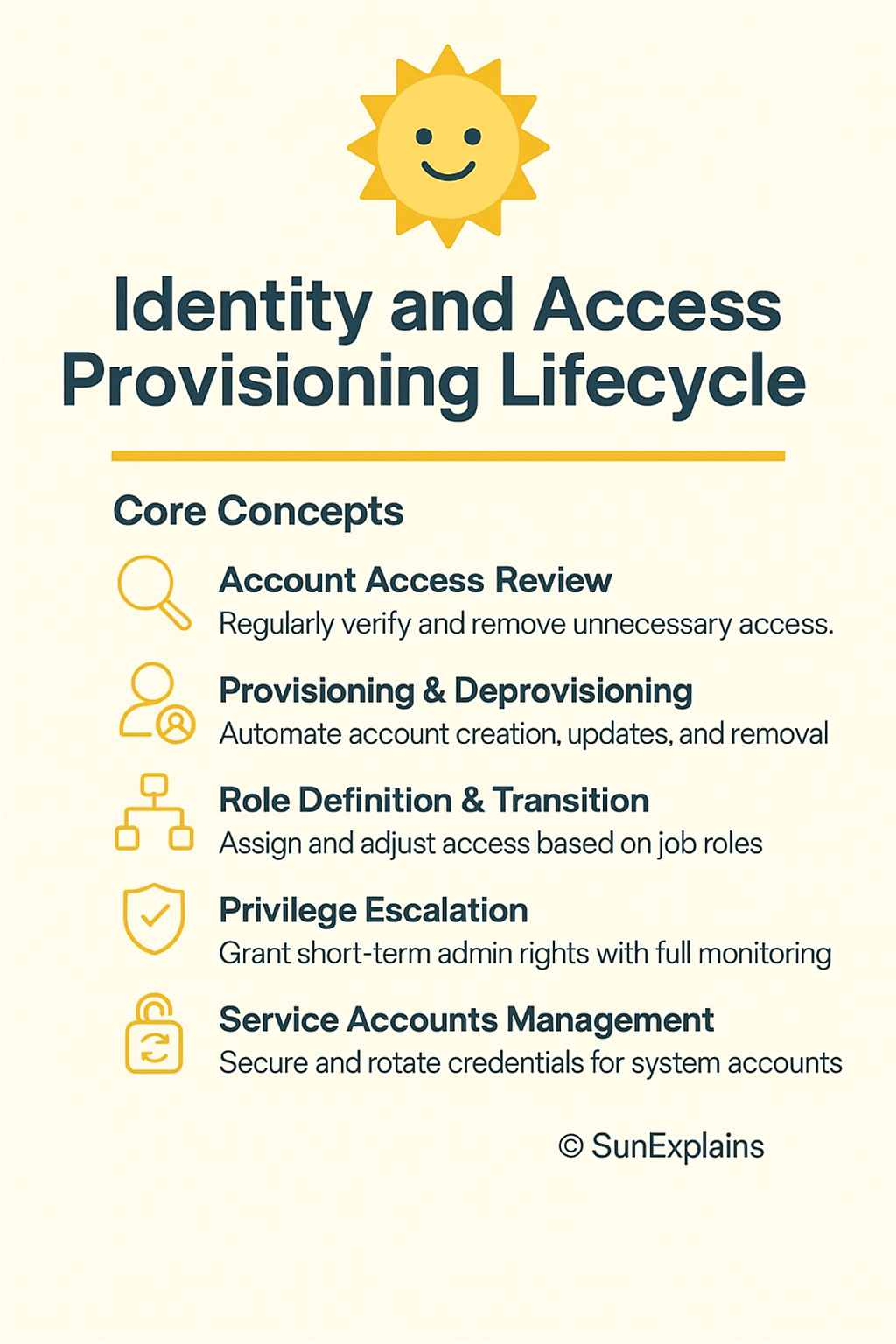
    1) Account Access Review (users, systems, services)

    • Technical Definition: Regular certification by owners to confirm each identity still needs each permission; remove what’s not needed.
    • Everyday Example: Floor managers review the badge roster every quarter.
    • Technical Example: In Okta IGA/SailPoint, app owners attest users, groups, cloud roles, and service accounts. If they don’t respond by the deadline, access auto-revokes.

    2) Provisioning & Deprovisioning (onboarding, transfers, offboarding)

    • Technical Definition: Automated create/update/remove of accounts and permissions driven by JML (Joiner–Mover–Leaver) events from HR or a source of truth.
    • Everyday Example: Issue badge on day one, switch floors on team change, collect and disable badge on exit.
    • Technical Example: HR adds a hire → IGA creates accounts in Azure AD/Okta and apps; mover triggers role exchange; leaver disables accounts, revokes sessions/tokens, and rotates any shared secrets used by teams.

    3) Role Definition & Transition

    • Technical Definition: RBAC (Role-Based Access Control) tied to job functions, plus controlled transitions for movers with Segregation of Duties (SoD) rules.
    • Everyday Example: Marketing badge opens 10–11; moving to Finance closes 10–11 and opens Finance—no overlap beyond a short handover.
    • Technical Example: Role catalog (“Finance-AP,” “Finance-AR,” “Data-Engineer”). Movers use role exchange: grant new role, auto-remove old after 7 days; block risky combos via SoD.

    4) Privilege Escalation (e.g., sudo)

    • Technical Definition: Time-boxed admin elevation with approvals, command limits, and full logging via PAM (Privileged Access Management).
    • Everyday Example: Borrow the master key for two hours; your name, time, and doors are logged.
    • Technical Example: Azure PIM/CyberArk grants 1-hour “DB-admin” tied to a ticket; Linux sudoers allows only listed commands; sessions stream to the SIEM for alerts.

    5) Service Accounts Management

    • Technical Definition: Governance for non-human identities: clear owner, least privilege, secrets in a vault, scheduled rotation, non-interactive auth where possible.
    • Everyday Example: The night robot gets a dock-only badge—never the executive floor.
    • Technical Example: Use OIDC federation for CI/CD to avoid long-lived keys. If secrets exist, store in Vault/Secrets Manager, rotate automatically, block VPN/email/interactive logins, include in access reviews.

    Real-World Case Study

    Failure — “Badge Under the Desk”

    • Situation: Org X made a storage service account for a migration. Password set to never expire, broad sudo, excluded from monitoring as “internal.”
    • Impact: An attacker learned about it from internal docs, used it to move laterally and copy backups. Dwell time: 36 days.
    • Lesson: Service accounts must live the same lifecycle as people: owner, reviews, rotation, and removal.

    Success — “Badges With Faces”

    • Fixes:
      • Inventory of all user/system/service accounts; owners assigned.
      • Secrets moved to a vault; auto-rotation turned on with health checks.
      • Just-In-Time (JIT) admin; tight sudo policy; sessions recorded.
      • Quarterly access reviews covering human and non-human identities.
    • Results: Two over-privileged roles trimmed, one orphan API key found and rotated, review completion 98%, standing admin = 0.
    Action Framework — Prevent → Detect → Respond

    Prevent

    • Single source of truth (HRIS) triggers JML for all identities.
    • Maintain a role catalog with SoD; use role exchange for movers.
    • Put all secrets in a vault; rotate passwords/keys/certs on schedule; prefer federation to remove long-lived keys.
    • Enforce JIT for admins; remove always-on admin rights.
    • Ban interactive logins for service accounts; require owner and purpose tags.

    Detect

    • Run access reviews quarterly; auto-revoke when owners don’t certify.
    • Alert on service account anomalies: interactive logins, new countries, odd hours.
    • Monitor sudo: unexpected commands, new hosts, high volume.
    • Catch access drift: compare intended roles vs actual app/cloud permissions.

    Respond

    • Playbook: Disable account → Revoke sessions/tokens → Rotate secrets → Notify owner → Root-cause analysis.
    • Keep break-glass accounts sealed, monitored, and reviewed after use.
    • Fix upstream causes: JML trigger, role mapping, rotation policy, or review coverage.

    Key Differences to Keep in Mind

    1. Provisioning vs Access Review — Provisioning gives access; reviews check it still makes sense.
      • Scenario: Contractor gets access Monday; quarterly review removes “billing-admin” they don’t need.
    2. Mover vs Leaver — Movers swap roles; leavers remove everything immediately.
      • Scenario: Team change replaces roles; exit disables accounts and revokes tokens the same day.
    3. Standing Privilege vs JIT — Standing is always on; JIT is time-boxed and logged.
      • Scenario: sudo allowed for one command for 30 minutes with a ticket.
    4. Human vs Service Accounts — Humans use MFA and change teams; services use non-interactive auth and stable scopes.
      • Scenario: Service account using VPN or email = instant alert.
    5. Password Rotation vs Key/Cert Rotation — Passwords follow policy; keys/certs need pipeline hooks and renewal plans.
      • Scenario: DB password rotates with app restart; OIDC avoids static keys entirely.

    Visual Workflow (Provision → Review → Revocation)

    [Provisioning]
    HRIS -> IGA -> Directory/Cloud -> Apps/DB
       |        |         |             |
       v        v         v             v
     Roles   Secrets    PAM/JIT     Service IDs
      |         \         /              |
      |          \       /               |
      v           v     v                v
    [Access Review] -> attest -> right-size -> auto-revoke (SLA)
                    |
                    v
    [Revocation/Rotation]
    Disable -> Revoke tokens -> Rotate creds -> Notify -> RCA
    

    Summary Table

    ConceptDefinitionEveryday ExampleTechnical Example
    Access ReviewRegular owner check of who still needs whatQuarterly badge rosterIGA certifications with auto-revoke
    Provision/DeprovisionCreate/change/remove access via JMLIssue, update, collect badgesHRIS → IGA → Azure AD/Okta → apps; disable + revoke at exit
    Role Definition/TransitionRBAC tied to jobs; clean swaps for moversFloors/rooms change with roleRole catalog + SoD; role exchange on transfers
    Privilege Escalation (sudo)Short-term admin with logs and limitsMaster key checkoutPIM/PAM JIT; sudoers allowlist; session recording
    Service Accounts MgmtOwners, least privilege, vault, rotation, no interactive useNight robot’s dock-only badgeOIDC federation; secrets in Vault; scheduled rotation

    What’s Next

    Workload Identity, Made Simple: replace long-lived keys with OIDC federation for CI/CD and apps—migration patterns that won’t break production.


    🌞 The Last Sun Rays…

    Those “open doors” came from a broken lifecycle: missing reviews, sloppy role swaps, loose sudo, and service accounts with no owner. Give every account a badge with a face—then issue it, review it, and retire it on time.
    CTA: Download the 3-Phase Checklist (Prevent → Detect → Respond) and run a Badge Audit for Bots this week. Find one non-expiring service credential, assign an owner, move it to your vault, turn on rotation, and keep proof in your logs.
    Reflect: If you tightened one step tomorrow—provisioning, reviews, role swaps, sudo controls, or service account care—which would cut your risk fastest?

  • IAM Blog Series – Part 4: Authorization Mechanisms

    Who Really Decides Your Access? (DAC, RBAC, ABAC, MAC & Risk-Based Models)


    Hook

    • Think keys: you lend your own house key (DAC), the office security desk follows company rules (RBAC/ABAC), or a smart lock checks time, place, and device before it opens (Risk-Based).
    • Think airport: your boarding pass puts you in a group (role), liquids over 100 ml are blocked for everyone (rule), and extra screening happens when risk looks high (adaptive).

    Why It’s Needed (Context)

    Many breaches start with too much access for too long. Old roles stay, broad rules stay, and one-off exceptions never die.

    We need a simple ladder:

    1. Start with roles (who generally does what).
    2. Add attributes (time, location, tags, device).
    3. Layer risk signals (behaviour, anomalies) on top.

    Result: least privilege, fast access, cleaner audits.


    Core Concepts Explained Simply

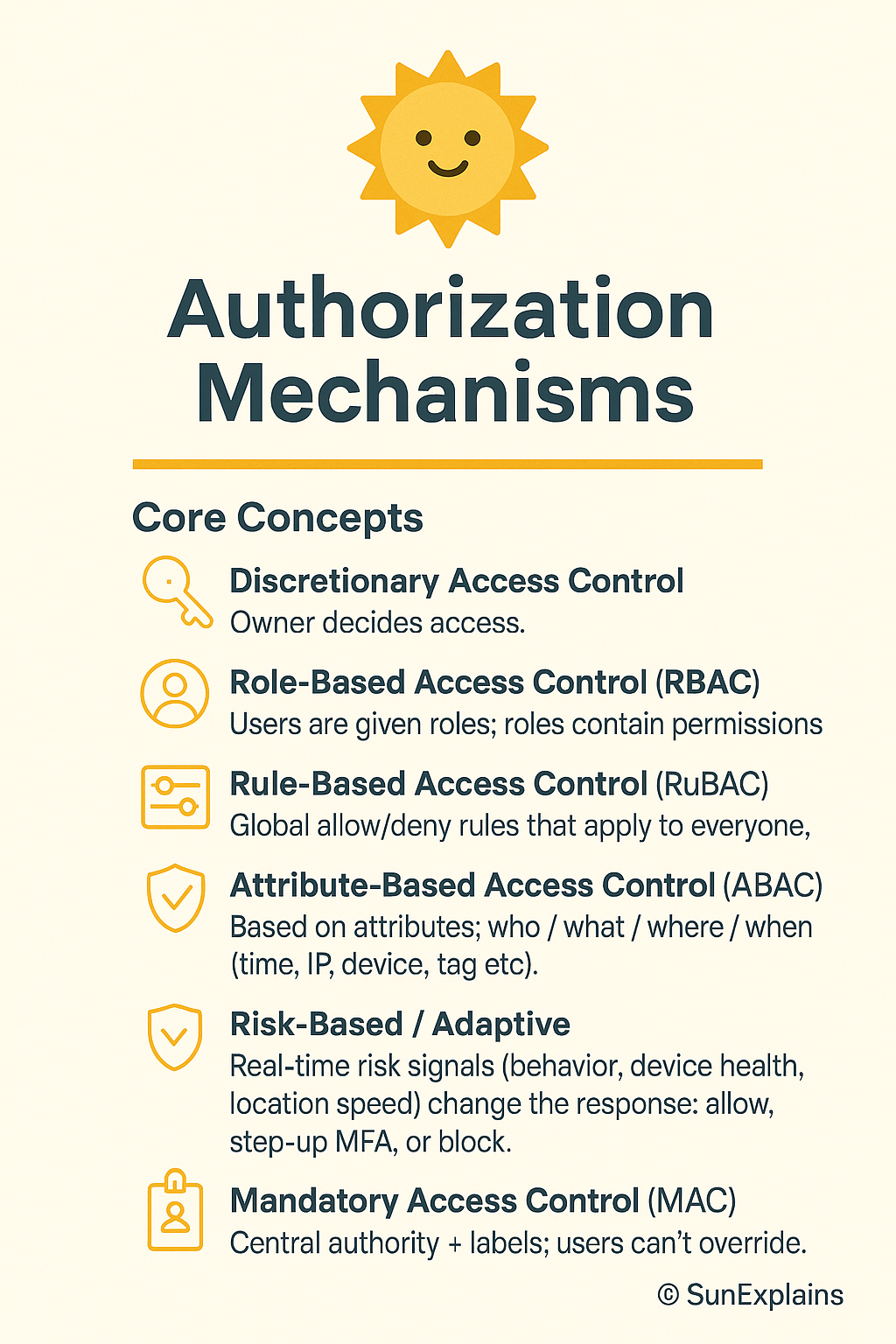
    DAC — Discretionary Access Control (owner decides; ACL-based)

    • Definition: The owner of a file or resource sets permissions using an ACL (Access Control List).
    • Everyday: You decide who gets a copy of your house key.
    • Technical: NTFS file owner adds users/groups as ACEs (Access Control Entries).

    Non-DAC — Centrally managed

    RBAC — Role-Based Access Control

    • Definition: Users are given roles; roles contain permissions.
    • Everyday: “All cashiers can open the cash drawer.”
    • Technical: Database “read-only” vs “admin”; Kubernetes ClusterRoles.

    Rule-Based — Global static rules

    • Definition: Global allow/deny rules that apply to everyone.
    • Everyday: Office closes at 9 p.m. After that, nobody enters.
    • Technical: Block DELETE in production outside maintenance windows.

    ABAC — Attribute-Based Access Control (dynamic)

    • Definition: Policies look at attributes of the user, resource, action, and environment (time, IP, device, tag).
    • Everyday: “Cashier on shift, inside the store, with 2FA can process returns under ₹10,000.”
    • Technical: AWS IAM policy with tags and aws:RequestTime / aws:SourceIp conditions.

    Risk-Based / Adaptive (ML-assisted)

    • Definition: Real-time risk signals (behaviour, device health, location speed) change the response: allow, step-up MFA, or block.
    • Everyday: Your bank asks for WebAuthn when you log in at 3 a.m. from a new city.
    • Technical: UEBA spots “impossible travel”; IdP forces step-up; session TTL (time-to-live) is shortened.

    MAC — Mandatory Access Control (labels enforce policy)

    • Definition: A central authority enforces data labels (Public / Confidential / Secret). Owners cannot bypass them.
    • Everyday: On a military site, clearance level decides access, not your manager.
    • Technical: SELinux/AppArmor label rules.


    Real-World Case Study

    Failure — Roles that grew barnacles

    • Situation: Startup used RBAC. Exceptions piled up. Temporary admin never expired.
    • Impact: An old role with wildcard storage access was abused; logs were exfiltrated; audit found “toxic” access everywhere.
    • Lesson: RBAC without expiry and review turns into “everyone can do everything.” Add lifecycle.

    Success — From rules to risk

    • Situation: A fintech added ABAC tags (DataClass, Env, Team) and plugged in a risk engine (device health + location).
    • Impact: Standing admin dropped 70%. High-risk sessions required WebAuthn and just-in-time (JIT) elevation tied to tickets.
    • Lesson: ABAC gives context; risk-based makes it adaptive. Speed stays; blast radius shrinks.

    Action Framework — Prevent → Detect → Respond

    Prevent

    • Match model to sensitivity:
      • Low: RBAC + simple rules
      • Medium: RBAC + ABAC
      • High/regulatory: MAC zones + ABAC inside
    • Deny by default. Allow by policy.
    • Replace standing admin with JIT elevation (short TTL, ticket-bound).
    • Use phishing-resistant MFA (FIDO2/WebAuthn) for sensitive actions.
    • Use policies as code: version control, peer review, tests.

    Detect

    • UEBA baselines for off-hours access and unusual paths.
    • Drift alerts: wildcards, owner-granted ACLs in “centralised” areas, rules that quietly expand.
    • Access reviews with context (last used, data touched, owner).
    • Honey-permissions: a fake “super-role” that alerts if used.

    Respond

    • Automate: end sessions, revoke tokens, rotate keys, quarantine devices.
    • Adapt mid-session: step-up MFA or lower privileges for risky activity.
    • After incidents: shorten TTLs, tighten conditions, restrict networks/devices.
    • Track MTTR-R (mean time to revoke), standing-privilege minutes, and % of risky sessions challenged.

    Key Differences to Keep in Mind

    • DAC vs Non-DAC:
      Personal choice vs central rules.
      Example: Engineer shares via ACL (DAC) vs platform team enforcing company-wide PII controls (Non-DAC).
    • RBAC vs Rule-Based:
      Roles grant abilities vs global guardrails.
      Example: “DB-Reader” exists, but a global rule blocks DELETE in prod.
    • Rule-Based vs ABAC:
      Static rules vs context-aware checks.
      Example: “Office hours only” vs “Office hours + managed device + inside HQ.”
    • ABAC vs Risk-Based:
      Deterministic policy vs policy plus real-time risk score.
      Example: ABAC would allow; risk engine forces WebAuthn because of geo-velocity.
    • ABAC vs MAC:
      Flexible context vs label-enforced no-exceptions.
      Example: Secret-labelled data stays blocked under MAC, even if ABAC says yes.

    Mini Example — NTFS vs AWS IAM

    NTFS (DAC-style)

    • Definition: File owners set ACLs and delegate access.
    • Everyday: You decide who can open a folder on your laptop.
    • Technical: Owner adds users/groups to ACEs; auditing is per object and scattered.

    AWS IAM (ABAC/RBAC hybrid)

    • Definition: Central identity + resource policies with conditions.
    • Everyday: Employees can enter the office, but only those on shift, inside the building, with badge + 2FA can open the safe.
    • Technical: Policies using tags (Project=Card), context keys (aws:MultiFactorAuthPresent, aws:SourceIp), and roles for coarse entitlements.

    Visual Placeholder — Access Control Model Hierarchy

    ACCESS CONTROL MODEL HIERARCHY
    
     DAC ──► Owner decides (ACL-based)
      │
      ├──► Non-DAC → centrally managed
           ├──► RBAC → Role-based
           ├──► Rule-Based → Global static rules
           │     └──► ABAC → Attribute-driven dynamic rules
           │           └──► Risk-Based → Adaptive, ML-driven
           └──► MAC → Label/classification enforced by system
    

    Summary Table

    ConceptDefinitionEveryday ExampleTechnical Example
    DACOwner sets per-object access (ACL)You give someone your house keyNTFS owner adds ACEs; UNIX rwx
    RBACRoles bundle permissions“Cashier can open the drawer”DB read-only/admin; K8s ClusterRole
    Rule-BasedGlobal static rulesOffice closes at 9 p.m.IP allowlist; deny DELETE in prod
    ABACAttributes decide accessOn-shift + in-store + 2FAAWS IAM conditions on tags/time/IP
    Risk-BasedReal-time risk adaptsExtra checks on odd loginUEBA + step-up MFA/JIT elevation
    MACLabels/clearance enforcedClearance decides accessSELinux/AppArmor label policies

    What’s Next

    Next: From RBAC to ABAC without tears — a tag schema you can copy, a test harness, and safe “break-glass.”


    🌞 The Last Sun Rays…

    Access isn’t just ‘allowed’ or ‘denied’—it’s a decision shared between owners (DAC), roles (RBAC), context (ABAC), risk engines, and data labels (MAC). Secure IAM is choosing the right decider for the right data.

    Who decides your access?

    • You (DAC) for small, local sharing.
    • Your organization (RBAC / Rules / ABAC) for scale and consistency.
    • The system (Risk-Based / MAC) when context or classification must win, even over humans.

    CTA: Audit your IAM today — find where your control model leaks.
    💭 Reflection: Which one new signal (device health, location trust, behaviour anomaly) would cut the most risk in your setup?


  • IAM Blog Series, Part 3: Authentication Factors

    🌞 Authentication Factors: How Locks, Keys, and Faces Actually Keep Us Safe

    Hook: The Door Test

    Imagine logging in as entering your own home:

    • A PIN is the secret knock at your front door (something you know).
    • A smartcard is your house key or garage remote (something you have).
    • Your face is what the smart doorbell recognizes (something you are).
    • Your smart lock only works if you’re at your door—not calling from miles away (somewhere you are).
    • And maybe your door “learns” your unique knock or the way you jiggle the key (something you do).

    The smarter your house, the pickier it gets about letting people in. That’s layered authentication in action.


    Why Is This Needed?

    Using just a password to protect your account is like locking your whole house with a flimsy mailbox key.
    Attackers can steal, guess, or trick you into revealing secrets.
    That’s why modern security checks many signals, just like a cautious homeowner:

    • What you know (secret knock/code)
    • What you have (key/remote)
    • Who you are (your face or fingerprint)
    • Where you are (are you really at your own door?)
    • How you behave (your way of knocking/entering)

    This makes it much harder for “burglars” (hackers) to break in, keeps auditors happy, and lets security react if something feels “off.”


    The 6 Factors of Authentication — The Home Edition

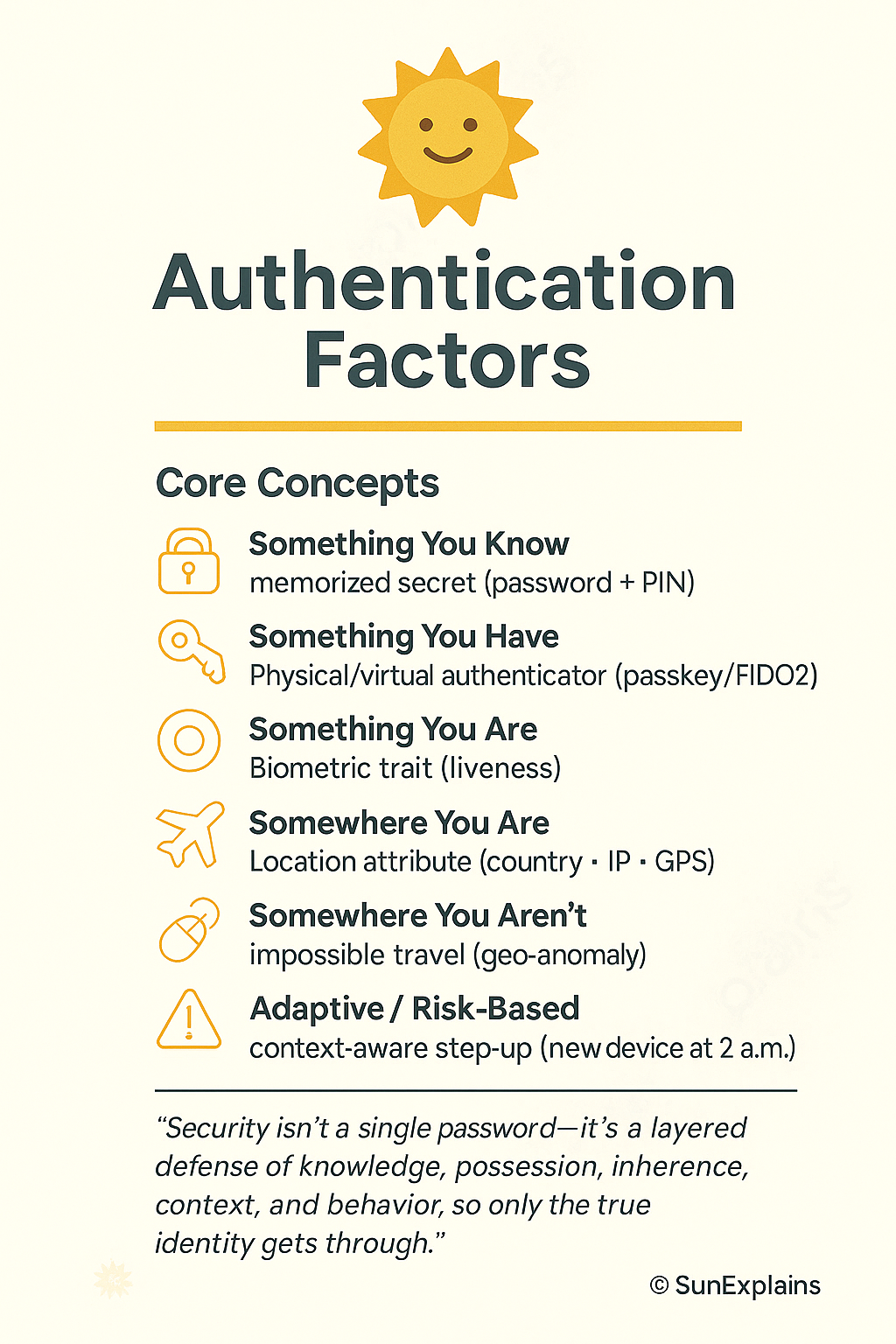
    1. Something You Know

    Your home’s secret door code or knock—only family knows it.
    Technical Example: An 18-character passphrase plus a PIN for your work VPN.


    2. Something You Have

    The house key in your pocket, or your garage’s remote opener—if you lose it, you’re locked out (or a stranger could get in).
    Technical Example: A FIDO2 security key you plug in to log in.


    3. Something You Are

    Your fingerprint unlocking your front door, or your face on the video doorbell—the door only opens for you.
    Technical Example: An iris scan checked on-device so it can’t be faked.


    4. Somewhere You Are

    The smart lock only works if you’re physically standing on your porch—not if you try to unlock it from another city.
    Technical Example: Your company blocks logins from outside the country unless you use another verification step.


    5. Somewhere You Aren’t

    Your house won’t unlock if it senses you’re “trying” to get in from two places at once (like the front door in Delhi and the back door in Tokyo five minutes later).
    Technical Example: Security flags this and asks for more proof before letting you in.


    6. Something You Do

    You have a unique way of turning the key or knocking—a rhythm only your door expects.
    Technical Example: If you type much faster/slower than usual, your account asks for another check.


    Real-World Case Study — The House Analogy

    Fail: The “Approve Fatigue” Attack

    Situation:
    A company protected its “house” with a password (door code) and push notifications (someone rings your bell, you hit “okay” on your phone).
    Hackers tricked users into giving up the code and then spammed doorbell alerts until a tired person hit “Approve” without thinking.

    Impact:
    The “thieves” got inside, stole valuables (data), and caused chaos.

    Lesson:
    Just like a real house, having only one lock isn’t enough.
    Smart locks (FIDO2 keys), number codes, and location checks are harder to fool than a simple “doorbell push.”


    Win: Upgrading the Locks

    Situation:
    A finance company replaced text-message codes (like hiding the key under the mat) with FIDO2 keys and checked the “homeowner’s” location and device health.

    Impact:
    Break-ins (phishing) nearly disappeared.
    Helpdesk calls for lost keys (password resets) dropped by half.

    Lesson:
    Having a physical key and checking who/where you are keeps your house (and data) much safer.


    Action Framework — Prevent → Detect → Respond (The Home Way)

    PhaseWhat to Do (Home Analogy)Why It Matters
    PreventInstall a smart lock with multiple checks (key, code, face, location).Stops most burglars at the door.
    DetectWatch for strange entry attempts (late night, from odd places, repeated wrong codes).Catches suspicious activity early.
    RespondIf something’s wrong, lock all doors, require another proof, reset keys/codes.Stops thieves before they do harm.

    Key Differences

    ConceptWeakStrongWhy It Matters
    Password vs PassphraseShort, guessable codeLong phrase only family knowsLonger = harder to guess/break in
    SMS OTP vs FIDO2Key hidden under doormatPhysical key in your pocketPhysical key can’t be copied remotely
    Push Approval vs Number MatchingDoorbell anyone can ringYou must punch a code in at the doorEnsures you’re really present
    Server Biometric StorageAll family faces in a public listFaces only stored on your own deviceLocal storage means less risk if hacked
    Static Policy vs AdaptiveDoor always asks for same codeExtra checks at 2 a.m. or from new placeLess hassle, more safety

    Authentication Flow (Simple Diagram)

     [Visitor at Door] 
       |
       v
     [Enter Name] --(do you live here?)--> [Yes]
       |                                   |
       v                                   v
    [Primary Check: Code/Key/Face] -->[Smart House: checks time, device, location, pattern]
                                          |       \
                                          |        \--> [Impossible entry? Extra check!]
                                          v
                                 [House Rules: family, friends, time]
                                          |
                                          v
                                 [Allow | Ask more | Deny]
    

    Summary Table: The “Home” Analogy

    ConceptDefinitionHome ExampleTechnical Example
    Something You KnowMemorized secretYour secret door code or knockVPN password + PIN
    Something You HavePhysical/virtual authenticatorYour house key or remote gate openerFIDO2 key for WebAuthn
    Something You AreBiometric traitFingerprint unlocks smart lock; doorbell sees faceIris scan on-device
    Somewhere You AreLocation attributeDoor unlocks only if you’re on the front porchCountry/IP/GPS-based access
    Somewhere You Aren’tImpossible travel signalDoor refuses if you “unlock” from two cities at onceGeo-anomaly triggers extra checks
    Something You DoBehavioral patternUnique way of turning the key or knockingKeystroke rhythm triggers re-authentication
    Adaptive/Risk-BasedPolicy changes by contextExtra checks if you enter at 2 a.m. or from new deviceMFA on new device at 2 a.m.

    What’s Next?

    Next up: Federated Identity — The Trust Bridge.
    How can you use your “home key” to safely enter other trusted homes (like a neighbor’s house or your office) without carrying a dozen keys?
    That’s where federation comes in.


    🌞 The Last Sun Rays…

    Security isn’t a single password—it’s a layered defense of knowledge, possession, inherence, context, and behavior, so only the true identity gets through.

    Question for you:
    Which extra protection would you add to your home tomorrow — a fingerprint lock, a smart door that checks where you are, or a camera that learns your unique way of entering?

  • IAM Blog Series, Part 2: Identification & Authentication Strategy

    Designing Your Identification & Authentication Strategy: Who Gets In and How You’ll Check


    Title + Hook

    Would You Let Just Anyone In? How to Decide Who Gets a Key—and Make Sure It’s Really Them

    • Analogy 1: Think of a VIP event: not only do you need an invitation, but you also show your ID at the door.
    • Analogy 2: At an airport, you need a ticket and a passport. Security checks aren’t just about entry, but about making sure you really are who you say you are.

    Why is this so important?
    Too many organizations hand out access before verifying who’s asking, or use weak checks. This is where many breaches begin—when “who” and “how” are just assumed.


    Why It’s Needed (Context)

    Mapping your doors (Part 1) was the foundation. But real security is about managing identities:

    • Who is allowed in?
    • How do you check they’re real?
    • How long do they keep access?
    • How do you track what they do?

    If you skip this step, you’ll end up with the wrong people (or things) inside your system—sometimes for years.

    Core Concepts Explained Simply

    Let’s break down the essentials of a smart identification and authentication strategy:


    1. Who Needs an Identity?

    • People: Employees, contractors, partners, customers.
    • Devices: Laptops, phones, servers, IoT sensors.
    • Services: Applications, cloud APIs, bots.
    • Everyday Example: Your workplace badge, your phone’s Face ID, or “Login with Google.”

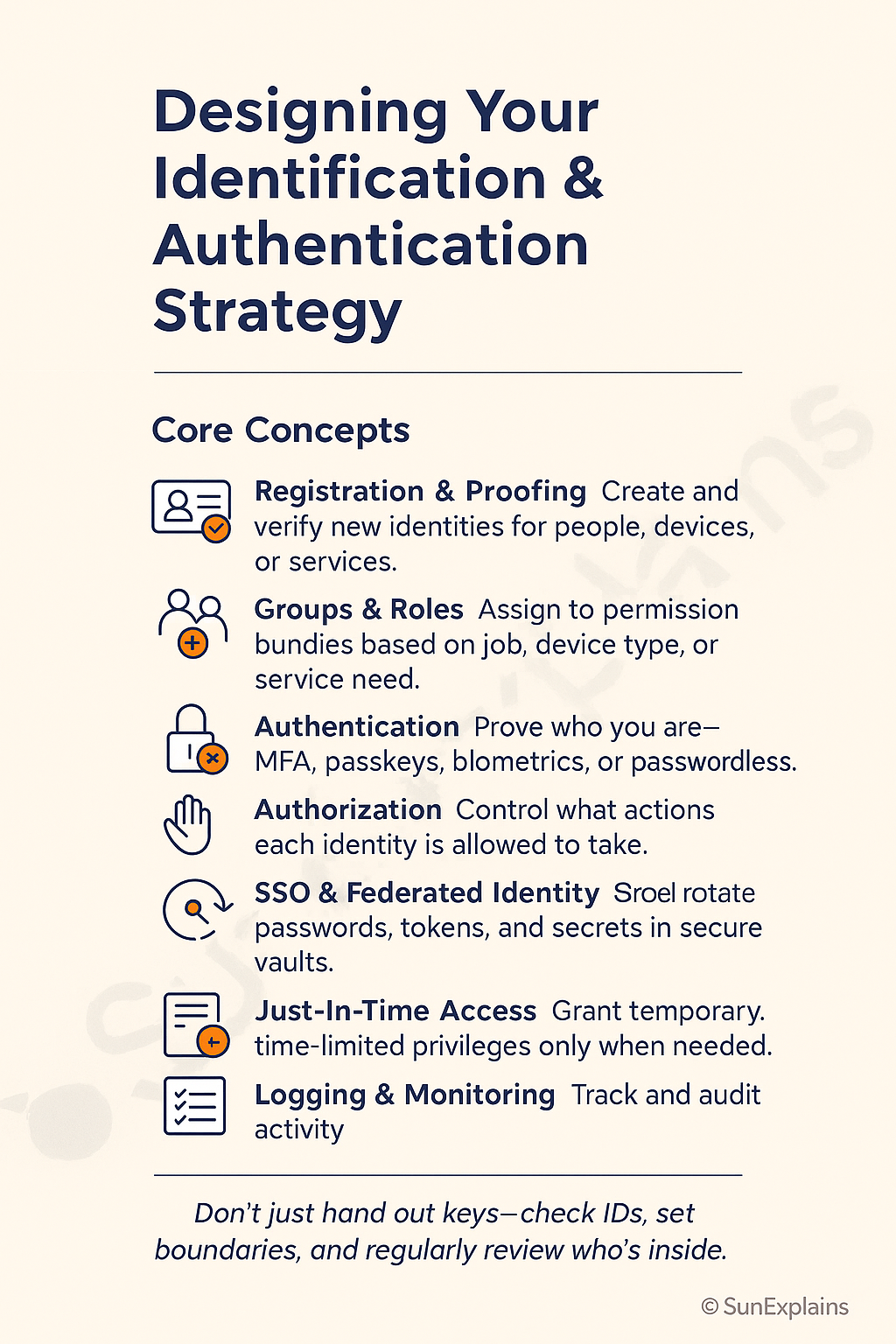
    2. Groups & Roles

    • Technical Definition: Bundles of permissions for users, devices, or services.
    • Everyday Example: All managers get a badge for meeting rooms; only IT has the server room key.
    • Technical Example: HR group can access payroll system; “Admin” role gives cloud config rights.

    3. Authentication, Authorization, and Accounting (AAA)

    • Authentication: Proving who you are (password, face scan, MFA, passkey).
    • Authorization: What you’re allowed to do once inside (read, write, approve, admin).
    • Accounting: Tracking what you do (logs, audits).
    • Everyday Example: Hotel: you show your ID (authentication), your card opens your room (authorization), and cameras/logs record entries (accounting).

    4. Session Management

    • Definition: Controlling the “open door” after login—how long you stay in, when you need to re-authenticate.
    • Everyday Example: Your banking app logs you out after inactivity.
    • Technical Example: 30-min session timeout, auto-MFA for sensitive actions, one-time-use access links.

    5. Registration, Proofing, and Establishment of Identity

    Definition: How new users/devices/services are registered and verified as legitimate.

    • Everyday Example: Showing your driver’s license to open a bank account.
    • Technical Example: HR uploads new hire data, system sends identity proof email, IT issues device and registers it.

    6. Federated Identity Management (FIM)

    • Definition: Letting users log in with accounts from trusted third parties (Google, Microsoft, business partners).
    • Everyday Example: “Login with Google” on a new app.
    • Technical Example: SAML, OIDC, Azure AD B2B—external users access your systems with their own credentials.

    7. Credential Management Systems

    • Definition: Tools that securely store, rotate, and manage passwords, tokens, secrets.
    • Everyday Example: Password manager apps; locked safe for keys.
    • Technical Example: HashiCorp Vault, AWS Secrets Manager, Bitwarden.

    8. Single Sign-On (SSO)

    • Definition: One login gives access to many apps—reducing password overload.
    • Everyday Example: One work account opens email, drive, HR portal.
    • Technical Example: Okta, Google Workspace, Azure AD SSO.

    9. Just-In-Time (JIT) Access

    • Definition: Temporary access granted only when needed—no standing admin rights.
    • Everyday Example: Visitor badge that only works for a meeting’s time slot.
    • Technical Example: Admin access valid for 1 hour, auto-expires, logs every action.

    Visual Placeholder: “Identity Journey Workflow”

    Each step is a checkpoint: Who are you? Should you be here? Are you still supposed to be here?

    Real-World Case Study

    Failure — The “Forever Admin” Problem

    • Situation: A developer joined a cloud team and was granted admin access. Even after moving to a new role, her access was never removed.
    • Impact: When her credentials were later phished, attackers gained “god mode” over production.
    • Lesson: Strong identity strategy means no one keeps access they no longer need—groups, roles, and JIT should be used together.

    Success — Smart Proofing + Just-In-Time Access

    • Situation: A fintech required identity proofing (government ID upload + HR validation), then assigned minimum roles. Admin access was “Just-In-Time”—granted only for a specific job and auto-revoked after an hour.
    • Impact: Even when attackers tried to socially engineer help desk, they hit a wall: no standing admin accounts to steal.
    • Lesson: Smart onboarding plus temporary privileges shrink both risk and audit effort.

    Action Framework — Prevent → Detect → Respond

    Prevent

    • Require identity proofing before creating any new account.
    • Assign users/devices/services to groups/roles—never “everyone” access.
    • Use strong authentication (MFA, passwordless) for all critical systems.
    • Implement JIT for high-risk privileges—don’t leave “always-on” admin access.
    • Centralize secrets/passwords in a vault with rotation.

    Detect

    • Monitor for failed logins, new devices, new locations.
    • Alert on stale sessions or standing privileges.
    • Log and review all admin and sensitive actions.

    Respond

    • Quickly revoke compromised or unused accounts.
    • Rotate credentials after suspected exposure.
    • Audit and clean up over-privileged or “ghost” users/devices.
    • Review onboarding/offboarding after any incident.

    Key Differences to Keep in Mind

    DifferenceOne-Line ExplanationExample Scenario
    Authentication vs AuthorizationWho are you? vs What can you do?You log in, but only see your files
    Group/Role vs. IndividualEasier, safer management for scaleAll HR staff can approve timesheets
    SSO vs StandaloneOne login for all vs many passwordsOkta/Google SSO vs app-by-app logins
    Standing Privilege vs JITAlways-on admin is riskyTemporary admin for a set task
    Manual Credentials vs VaultSpreadsheets are riskySecrets in password manager/vault

    Summary Table

    ConceptWhat it MeansEveryday ExampleTechnical Example
    Groups & RolesBundle permissionsStaff badge by jobAWS IAM roles, AD groups
    AuthenticationProve who you areFace unlockMFA, passwordless
    AuthorizationWhat you can doLibrary borrow limitsRBAC/ABAC policies
    Session MgmtManage access windowPark wristband expiresSession timeout, MFA
    ProofingVet new identitiesShow driver’s licenseKYC, onboarding
    FIMTrust external logins“Login with Google”SAML, OIDC
    Credential MgmtStore secrets safelyLocked safePassword vaults
    SSOOne login, many appsMaster keyOkta, Azure AD SSO
    JITTemporary accessVisitor badgeEphemeral admin rights

    What’s Next

    You now know how to verify who gets in, and how to make sure only the right people/devices/services are allowed through your doors.
    Next up: Access control in action—how to set and enforce the right permissions, monitor use, and spot risky changes before they lead to trouble.

    🌞 The Last Sun Rays…

    Don’t just hand out keys—check IDs, set boundaries, and regularly review who’s inside.
    Challenge: Review your own logins, devices, or admin access.
    What’s the “oldest” account or privilege you still have?
    Could someone still get in after they shouldn’t?

  • IAM Blog Series, Part 1:The First Step in Controlling Access

    Mapping Your Doors: The First Step in Controlling Access to Everything You Own

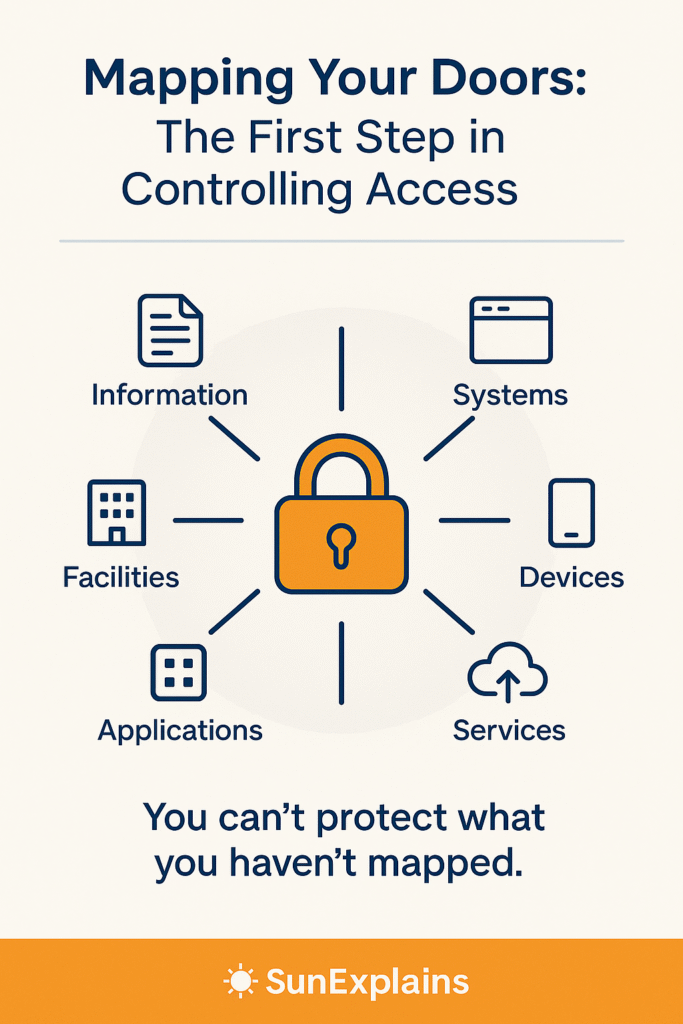
    Imagine you’re protecting a building. Would you hand out keys before you know where every door and window is?
    The same goes for cybersecurity: before deciding who can get in, you must know what you’re protecting and where the entry points are—both physical and digital.
    Yet this is where many IAM programs stumble:
    Many teams rush into tool selection—buying software or setting up permissions—without first mapping their real entry points. The result? Missed doors, lingering risks, and controls that don’t truly fit the environment.

    Why It’s Needed (Context)

    No matter your size or industry, your organization depends on a mix of valuable things—data, systems, devices, offices, apps, and background services.
    You can’t control who gets in until you know what you have and where someone could enter.
    That’s why every strong identity and access management (IAM) program begins with a simple but powerful step: mapping your assets and their doors.

    Core Concepts Explained Simply

    For each type of asset, here’s what it means, a simple real-life example, and how to protect it physically and digitally:

    Information

    • What it is: All your important data, from digital files to printed records.
    • Everyday Example: Your diary, work folders, or saved documents.
    • How to protect:
      • Physical: Locked cabinets for paper records.
      • Logical: Passwords and file permissions for digital data.

    Systems

    • What it is: The servers and software that make your business work.
    • Everyday Example: The family computer or your office network.
    • How to protect:
      • Physical: Servers stored in locked rooms.
      • Logical: Restrict who can log in or make changes.

    Devices

    • What it is: Laptops, phones, tablets, printers, and network devices.
    • Everyday Example: Your personal laptop or a company phone.
    • How to protect:
      • Physical: Cable locks, safe storage.
      • Logical: PIN codes, encryption, remote wipe.

    Facilities

    • What it is: Offices, rooms, and buildings where people work or equipment lives.
    • Everyday Example: An office front door or storage closet.
    • How to protect:
      • Physical: Locks, security badges, cameras.
      • Logical: Visitor logs or electronic access systems.

    Applications

    • What it is: Software you use to get work done (email, finance, customer management).
    • Everyday Example: Logging into your company’s payroll app.
    • How to protect:
      • Logical: User accounts, permissions, and access restrictions.

    Services

    • What it is: Background systems like printing, cloud storage, payment gateways.
    • Everyday Example: Printing at the office or sharing files in the cloud.
    • How to protect:
      • Logical: Limit who can use these services and monitor usage.

    Real-World Case Study

    When One Unlocked Door Was All It Took
    A company kept its server in an unlocked office. One night, someone simply walked in and took the server. The best passwords couldn’t help—the thief had the equipment in their hands.
    Lesson: Physical security is just as important as digital security.

    When Every Door Had a Lock
    A clinic stored patient records on a computer in a locked room, and only trusted staff had the key and the password. Even if someone entered the building, they couldn’t access the records without both.
    Lesson: The best protection comes from combining both physical and logical security.

    Action Framework — Prevent → Detect → Respond

    Prevent

    • List all your important assets (data, systems, devices, facilities, apps, services).
    • Identify every entrance—doors, cabinets, login screens, admin panels.
    • Add locks: use physical locks where needed and passwords/permissions for digital access.

    Detect

    • Keep logs of visitors and digital access.
    • Watch for unusual events: unlocked doors, strange logins, or missing items.

    Respond

    • Fix gaps: add missing locks, reset passwords, or change who has access.
    • Act fast if something goes wrong: block accounts, check cameras, or restore from backups.
    • Regularly review your list—new “doors” appear as you add new tools and spaces.

    Key Differences to Keep in Mind

    What’s Different?Quick ExplanationExample Scenario
    Physical vs LogicalReal locks vs digital checksLocked door vs login password
    Device vs SystemSingle gadget vs big setupLost phone vs breached company server
    Facility vs ApplicationPlace vs softwareLocked office vs payroll app login

    Summary Table

    AssetEveryday ExamplePhysical ControlLogical Control
    InformationWork folder, filesLocked cabinetPassword, file permissions
    SystemsComputer serverLocked server roomAdmin account
    DevicesLaptop, phoneCable lock, safe placePIN, encryption
    FacilitiesOffice, storage roomDoor lock, badge entryVisitor log
    ApplicationsPayroll app, email(N/A)User accounts, permissions
    ServicesPrinting, cloud files(N/A)User permissions

    What’s Next

    Now that you know where all your doors are, the next step is deciding who should get in—and how to verify their identity.

    In the next blog, we’ll explore how to design a smart identification and authentication strategy for people, devices, and services. You’ll learn how accounts, passwords, and multi-factor authentication work together to build a secure access framework.

    Stay tuned for Part 2: Designing Your Identification and Authentication Strategy — Who Gets In and How You’ll Verify Their Identity.


    🌞 The Last Sun Rays…

    Before you hand out any keys, make sure you’ve found and secured every door—physical and digital.
    Challenge: Pick one asset (a device, a room, or a digital system) and ask, “How could someone get in?”
    What’s the easiest door to break through—and what’s one step you can take today to make it safer?