Mapping Your Doors: The First Step in Controlling Access to Everything You Own
Imagine you’re protecting a building. Would you hand out keys before you know where every door and window is?
The same goes for cybersecurity: before deciding who can get in, you must know what you’re protecting and where the entry points are—both physical and digital.
Yet this is where many IAM programs stumble:
Many teams rush into tool selection—buying software or setting up permissions—without first mapping their real entry points. The result? Missed doors, lingering risks, and controls that don’t truly fit the environment.
Why It’s Needed (Context)
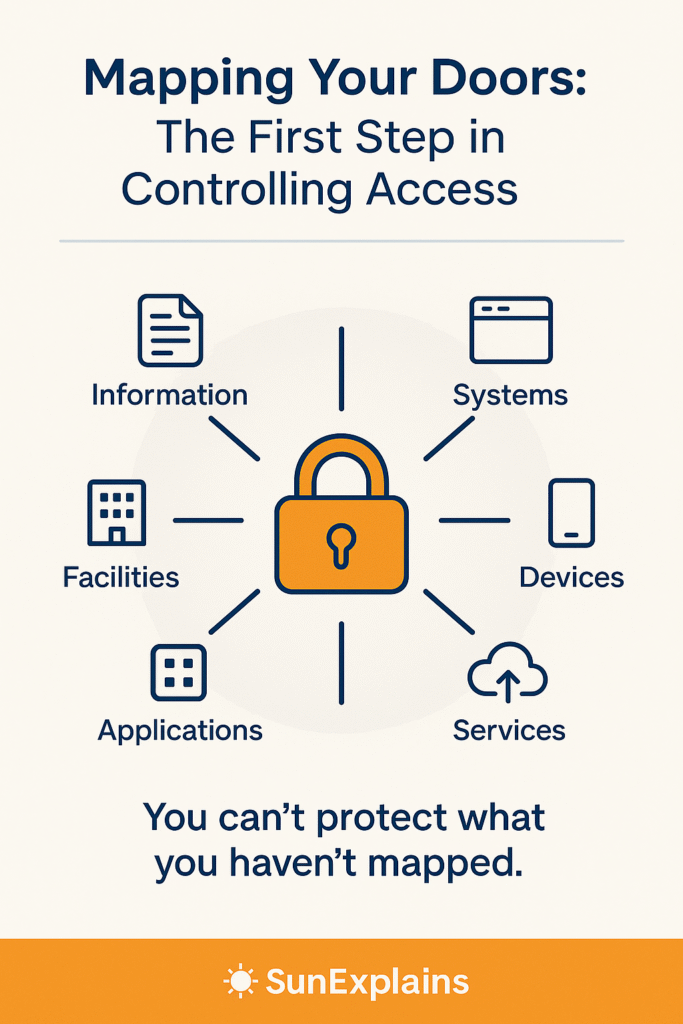
No matter your size or industry, your organization depends on a mix of valuable things—data, systems, devices, offices, apps, and background services.
You can’t control who gets in until you know what you have and where someone could enter.
That’s why every strong identity and access management (IAM) program begins with a simple but powerful step: mapping your assets and their doors.
Core Concepts Explained Simply
For each type of asset, here’s what it means, a simple real-life example, and how to protect it physically and digitally:
Information
- What it is: All your important data, from digital files to printed records.
- Everyday Example: Your diary, work folders, or saved documents.
- How to protect:
- Physical: Locked cabinets for paper records.
- Logical: Passwords and file permissions for digital data.
Systems
- What it is: The servers and software that make your business work.
- Everyday Example: The family computer or your office network.
- How to protect:
- Physical: Servers stored in locked rooms.
- Logical: Restrict who can log in or make changes.
Devices
- What it is: Laptops, phones, tablets, printers, and network devices.
- Everyday Example: Your personal laptop or a company phone.
- How to protect:
- Physical: Cable locks, safe storage.
- Logical: PIN codes, encryption, remote wipe.
Facilities
- What it is: Offices, rooms, and buildings where people work or equipment lives.
- Everyday Example: An office front door or storage closet.
- How to protect:
- Physical: Locks, security badges, cameras.
- Logical: Visitor logs or electronic access systems.
Applications
- What it is: Software you use to get work done (email, finance, customer management).
- Everyday Example: Logging into your company’s payroll app.
- How to protect:
- Logical: User accounts, permissions, and access restrictions.
Services
- What it is: Background systems like printing, cloud storage, payment gateways.
- Everyday Example: Printing at the office or sharing files in the cloud.
- How to protect:
- Logical: Limit who can use these services and monitor usage.
Real-World Case Study
When One Unlocked Door Was All It Took
A company kept its server in an unlocked office. One night, someone simply walked in and took the server. The best passwords couldn’t help—the thief had the equipment in their hands.
Lesson: Physical security is just as important as digital security.
When Every Door Had a Lock
A clinic stored patient records on a computer in a locked room, and only trusted staff had the key and the password. Even if someone entered the building, they couldn’t access the records without both.
Lesson: The best protection comes from combining both physical and logical security.
Action Framework — Prevent → Detect → Respond
Prevent
- List all your important assets (data, systems, devices, facilities, apps, services).
- Identify every entrance—doors, cabinets, login screens, admin panels.
- Add locks: use physical locks where needed and passwords/permissions for digital access.
Detect
- Keep logs of visitors and digital access.
- Watch for unusual events: unlocked doors, strange logins, or missing items.
Respond
- Fix gaps: add missing locks, reset passwords, or change who has access.
- Act fast if something goes wrong: block accounts, check cameras, or restore from backups.
- Regularly review your list—new “doors” appear as you add new tools and spaces.
Key Differences to Keep in Mind
| What’s Different? | Quick Explanation | Example Scenario |
|---|---|---|
| Physical vs Logical | Real locks vs digital checks | Locked door vs login password |
| Device vs System | Single gadget vs big setup | Lost phone vs breached company server |
| Facility vs Application | Place vs software | Locked office vs payroll app login |
Summary Table
| Asset | Everyday Example | Physical Control | Logical Control |
|---|---|---|---|
| Information | Work folder, files | Locked cabinet | Password, file permissions |
| Systems | Computer server | Locked server room | Admin account |
| Devices | Laptop, phone | Cable lock, safe place | PIN, encryption |
| Facilities | Office, storage room | Door lock, badge entry | Visitor log |
| Applications | Payroll app, email | (N/A) | User accounts, permissions |
| Services | Printing, cloud files | (N/A) | User permissions |
What’s Next
Now that you know where all your doors are, the next step is deciding who should get in—and how to verify their identity.
In the next blog, we’ll explore how to design a smart identification and authentication strategy for people, devices, and services. You’ll learn how accounts, passwords, and multi-factor authentication work together to build a secure access framework.
Stay tuned for Part 2: Designing Your Identification and Authentication Strategy — Who Gets In and How You’ll Verify Their Identity.
🌞 The Last Sun Rays…
Before you hand out any keys, make sure you’ve found and secured every door—physical and digital.
Challenge: Pick one asset (a device, a room, or a digital system) and ask, “How could someone get in?”
What’s the easiest door to break through—and what’s one step you can take today to make it safer?

By profession, a CloudSecurity Consultant; by passion, a storyteller. Through SunExplains, I explain security in simple, relatable terms — connecting technology, trust, and everyday life.
Leave a Reply